How to Add FAQ Schema in WordPress Without a Plugin (Step-by-Step Guide)
A Manual JSON-LD Tutorial for WordPress SEO, AEO & GEO
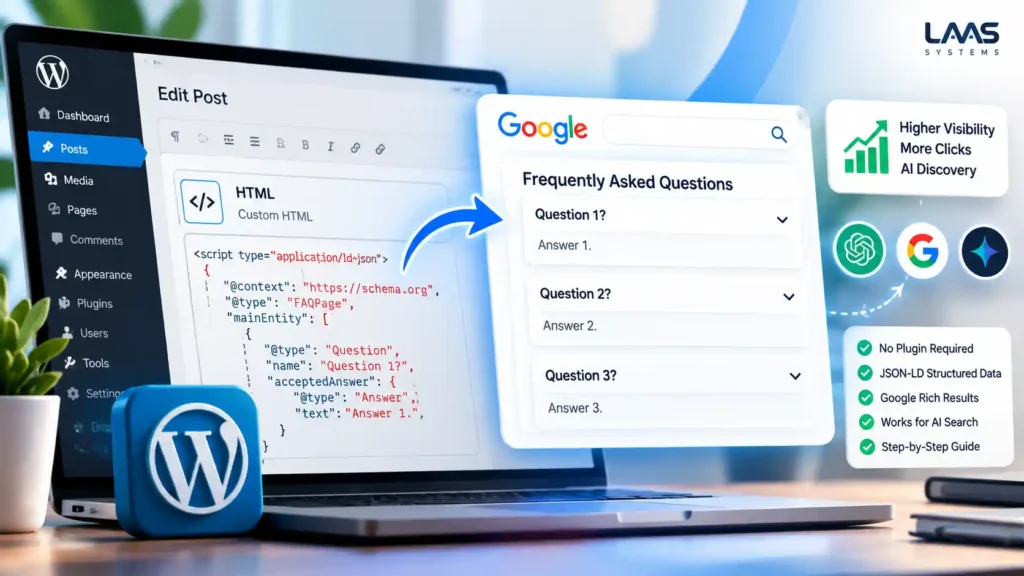
Adding FAQ schema in WordPress without a plugin is a practical way to implement structured data on selected articles, service pages, and other relevant website content. With a small JSON-LD code block, you can describe the questions and answers on a page in a format that search engines can process.
In this complete tutorial, you will learn how to add FAQ schema manually, customize the code for your own questions and answers, insert it into WordPress, validate the markup, and troubleshoot common errors without installing an additional schema plugin.
You will also learn how FAQ schema fits into Search Engine Optimization (SEO), Answer Engine Optimization (AEO), Generative Engine Optimization (GEO), and the broader goal of making your expertise discoverable through search.
What you will learn:
- What FAQ schema is and how it differs from a normal FAQ section.
- Why FAQ structured data can be useful for search engines and other information retrieval systems.
- How to prepare questions and answers before writing the code.
- How to create reusable FAQPage JSON-LD structured data.
- How to add FAQ schema using a WordPress Custom HTML block.
- How to implement FAQ schema through a WordPress child theme.
- How to test your schema and troubleshoot common errors.
- How to avoid duplicate schema and maintain accurate structured data.
- How FAQ content can support a broader organic acquisition strategy.
Who this guide is for: WordPress website owners, consultants, professionals, coaches, SMEs, content creators, and marketers who want greater control over their website’s structured data.
Watch the Step-by-Step YouTube Tutorial
Watch the video below to see the practical process of adding FAQ schema to an existing WordPress article. The demonstration covers preparing your FAQs, editing the JSON-LD code, inserting it into WordPress, updating the article, and checking the result with a schema validation tool.
Video: How to add FAQ schema in WordPress without a plugin.
The video demonstrates the core implementation. This article goes further by explaining the code structure, providing a reusable template, covering an alternative implementation method, and showing you how to validate and maintain your structured data.
laas.systems laas.systemsWhat Is FAQ Schema in WordPress?
FAQ schema is structured data that identifies a page as containing frequently asked questions and their corresponding answers.
It uses the Schema.org vocabulary and is commonly implemented using JSON-LD, a structured data format that can be included in a webpage’s HTML without changing the visible design.
For example, a WordPress article might contain these questions:
- What is FAQ schema?
- Can I add FAQ schema without a plugin?
- How do I test FAQ structured data?
Visitors can read these questions and answers in the article. FAQPage structured data provides a machine-readable representation of the same information.
Understanding the FAQPage JSON-LD structure
The main components are:
| Code element | Purpose |
|---|---|
@context | Identifies the Schema.org vocabulary. |
@type | Specifies the type of structured data, such as FAQPage. |
mainEntity | Contains the questions associated with the FAQ page. |
Question | Represents an individual question. |
name | Stores the question text. |
acceptedAnswer | Contains the answer associated with the question. |
Answer | Identifies the answer object. |
text | Stores the answer text. |
You do not need to memorize every property. The important thing is to understand which parts you can replace and which parts must remain intact.
Why Add FAQ Schema Without a WordPress Plugin?
There are several reasons to implement FAQ schema manually.
1. You want control over your structured data
Manual JSON-LD allows you to choose the questions, answers, and pages where the markup appears. You do not have to depend on a dedicated FAQ plugin to generate the code.
2. You want to avoid installing another plugin
If your WordPress website already has a theme and SEO system, installing an additional plugin for one structured-data feature may be unnecessary.
However, fewer plugins do not automatically guarantee a faster website. Performance depends on what each plugin loads and does.
3. You only need FAQ schema on selected pages
A consultant might want FAQ schema on a service page. A content creator might need it on a tutorial. A business might want it on a support page.
Manual implementation allows you to target relevant pages rather than applying the same schema indiscriminately across the website.
4. You want to understand how structured data works
Understanding JSON-LD helps you inspect your website, troubleshoot errors, and make informed decisions about the structured data generated by your existing SEO tools.
5. You want to support your website’s organic discoverability
FAQ content can answer real customer questions, clarify services, and address objections before someone contacts a business.
When combined with useful articles, internal links, video content, and clear conversion paths, it can contribute to a stronger organic acquisition strategy.
Before You Start: Prepare Your WordPress FAQ Content
Before writing the code, identify the questions and answers you want to mark up.
Start with the information visitors genuinely need rather than copying a schema template and inventing questions to fit it.
For example, if your article teaches readers how to add FAQ schema to WordPress, suitable questions might include:
- Can I add FAQ schema to WordPress without a plugin?
- What is FAQPage JSON-LD?
- Where should I place the schema code?
- How can I test whether the schema is valid?
- Does FAQ schema guarantee better Google rankings?
Write a concise, accurate answer to each question.
Follow these preparation rules
Keep the questions visible. Add the FAQ section to your article using WordPress headings and paragraph blocks, or a suitable accordion that exposes the content to visitors.
Keep the wording consistent. The question in the JSON-LD should correspond to the question displayed on the page. The same applies to the answer.
Answer questions directly. Put the most important information first, followed by supporting details where necessary.
Avoid keyword stuffing. Write naturally instead of repeating the target keyword unnecessarily.
Use relevant questions. Each question should contribute to the topic of the article or the needs of its audience.
Update outdated answers. If the visible FAQ changes, review the structured data as well.
There is no universal number of questions you must include. Three useful questions are better than ten repetitive ones.
Method 1: Add FAQ Schema Using a Custom HTML Block
This is the method demonstrated in the YouTube tutorial. It is suitable when you want to add JSON-LD to a particular WordPress post without editing theme files.
You will prepare the visible FAQ section, customize the JSON-LD template, and insert it into the WordPress editor.
Step 1: Open the WordPress article
Log in to your WordPress dashboard.
Navigate to Posts → All Posts if you are editing a blog article, or Pages → All Pages if you are editing a page.
Find the content you want to update and click Edit.
Step 2: Locate the visible FAQ section
Scroll to the frequently asked questions near the bottom of your article, or create a new FAQ section if one does not exist.
For example:
Can I add FAQ schema without a plugin?
Yes. You can add FAQPage JSON-LD manually to a WordPress page, provided the code is inserted correctly and the questions and answers match the visible content.
How do I test FAQ schema?
You can use the Schema.org Markup Validator to inspect the structured data detected on your published page.
These are example FAQs. Replace them with questions and answers relevant to your own article.
Step 3: Copy the FAQ schema code template
The following is the reusable three-question template for this tutorial.
Copy the complete code, including the opening and closing script tags.
<script type="application/ld+json">
{
  "@context": "https://schema.org",
  "@type": "FAQPage",
  "mainEntity": [
    {
      "@type": "Question",
      "name": "Question 1?",
      "acceptedAnswer": {
        "@type": "Answer",
        "text": "Answer 1."
      }
    },
    {
      "@type": "Question",
      "name": "Question 2?",
      "acceptedAnswer": {
        "@type": "Answer",
        "text": "Answer 2."
      }
    },
    {
      "@type": "Question",
      "name": "Question 3?",
      "acceptedAnswer": {
        "@type": "Answer",
        "text": "Answer 3."
      }
    }
  ]
}
</script>
Important: This is a template, not finished FAQ content. Before publishing it, replace all three placeholder questions and answers with the actual FAQs visible on your page.
The JSON structure is complete. You do not need to add another closing bracket after the final mainEntity array.
Step 4: Replace the placeholder questions and answers
This is the most important part of the process.
Suppose your visible FAQ section contains these questions:
- Can I add FAQ schema without a plugin?
- What is FAQPage JSON-LD?
- How do I test FAQ schema?
You would customize the three objects as follows:
| Template placeholder | Replace with |
|---|---|
Question 1? | Your first visible FAQ question. |
Answer 1. | The answer to your first question. |
Question 2? | Your second visible FAQ question. |
Answer 2. | The answer to your second question. |
Question 3? | Your third visible FAQ question. |
Answer 3. | The answer to your third question. |
Keep the structural properties unchanged.
For example, this:
"name": "Question 1?"becomes:
"name": "Can I add FAQ schema without a plugin?"And this:
"text": "Answer 1."becomes:
"text": "Yes. You can add FAQPage JSON-LD manually to a WordPress page."Use your actual answer rather than copying the example if it does not accurately represent your page.
Do not replace the property names. Keep @context, @type, mainEntity, Question, name, acceptedAnswer, Answer, and text exactly as shown.
Step 5: Understand what you must not change
When customizing the code, preserve these elements:
- The opening
<script type="application/ld+json">tag. - The closing
</script>tag. - The opening and closing braces for each object.
- The square brackets surrounding the
mainEntityarray. - The commas separating question objects.
- The quotation marks around property names and string values.
- The schema type
FAQPage.
A missing comma, extra bracket, or incorrectly placed quotation mark can make the JSON invalid.
For example, the final question object in an array does not need a trailing comma.
Step 6: Add more questions if necessary
Your template contains three questions, but you can include additional questions when they are relevant to your page.
Copy the complete question-and-answer object below and insert it inside mainEntity, after the existing question objects.
{
  "@type": "Question",
  "name": "Replace this with another question?",
  "acceptedAnswer": {
    "@type": "Answer",
    "text": "Replace this with the answer visible on your page."
  }
}
Separate the objects with commas, but do not put a comma after the final object.
If you have eight visible FAQs, your schema should contain eight corresponding question objects. You do not need to add unnecessary questions simply to increase the number.
Step 7: Insert the code into WordPress
In the WordPress Block Editor:
- Place your cursor below the visible FAQ section.
- Click the + button to add a block.
- Search for Custom HTML.
- Select the Custom HTML block.
- Paste the complete JSON-LD script into the block.
- Click Update or Publish.
Do not paste the code into an ordinary Paragraph block or a Code block intended to display code as text.
Important WordPress limitation: A Custom HTML block does not guarantee that the script will survive saving. WordPress permissions, security settings, or site-level filters can remove or alter script tags.
If the script disappears or is modified when you save, use the alternative method below.
Step 8: Update the article and clear the cache
After saving your changes, open the published article in a new browser tab.
If your website uses caching, clear the relevant WordPress, server, or CDN cache.
Then reload the page to confirm that the latest version is being served.
Do not assume that seeing the code in the editor means it was published correctly.
Step 9: Inspect the published page source
Open the published page and use your browser’s View Page Source feature.
Search for:
application/ld+json
Check whether the FAQ schema is present and whether the questions and answers are intact.
If the script is missing, malformed, or displayed as ordinary text, investigate the implementation before proceeding.
Method 2: Add FAQ Schema Through a WordPress Child Theme
If WordPress strips the script from your Custom HTML block, or you need a more controlled implementation, you can output FAQ schema through a PHP function.
This approach avoids installing a dedicated FAQ schema plugin, but it requires greater technical care.
For a traditional WordPress theme such as a child-theme-based Astra installation, the general approach is to add a function to the child theme’s functions.php file and use a WordPress hook to output the JSON-LD.
Before editing PHP: Back up your website, use a child theme, and test on a staging site where possible. A PHP syntax error can disrupt your website. If you are unfamiliar with PHP, ask a developer to implement this method.
Example PHP implementation
The following example generates FAQPage schema for a specific WordPress page.
Replace the example page slug, questions, and answers before using it.
add_action('wp_head', 'laas_output_faq_schema');

function laas_output_faq_schema() {
    if (!is_page('your-faq-page-slug')) {
        return;
    }

    $faq_items = array(
        array(
            '@type' => 'Question',
            'name' => 'Can I add FAQ schema without a plugin?',
            'acceptedAnswer' => array(
                '@type' => 'Answer',
                'text' => 'Yes. You can add FAQPage JSON-LD manually to a WordPress page.'
            )
        ),
        array(
            '@type' => 'Question',
            'name' => 'How do I test FAQ schema?',
            'acceptedAnswer' => array(
                '@type' => 'Answer',
                'text' => 'Use the Schema.org Markup Validator to inspect your published structured data.'
            )
        )
    );

    $schema = array(
        '@context' => 'https://schema.org',
        '@type' => 'FAQPage',
        'mainEntity' => $faq_items
    );

    echo '<script type="application/ld+json">';
    echo wp_json_encode(
        $schema,
        JSON_UNESCAPED_SLASHES | JSON_UNESCAPED_UNICODE
    );
    echo '</script>';
}
How this code works
add_action('wp_head', ...)tells WordPress to run the function through the page-head hook.is_page('your-faq-page-slug')restricts the output to the specified WordPress page.$faq_itemscontains the questions and their corresponding answers.$schemaassembles the FAQPage structured-data object.wp_json_encode()converts the PHP data into JSON.- The script is printed in the page head when the condition is satisfied.
This is an illustrative implementation. You must customize the page condition and FAQ content and test the actual output before publishing.
For a blog post, you would normally use an appropriate post-specific condition, such as is_single(), together with a check that identifies the intended post. Do not remove the page condition and assume that every article contains the same FAQs.
Avoid placing this code in your parent theme’s functions.php file. Theme updates can overwrite your changes. A child theme is the safer location for custom theme code.
Which Manual Method Should You Choose?
The two methods serve different purposes.
| Consideration | Custom HTML block | Child theme PHP hook |
|---|---|---|
| Best use | A small number of individual posts or pages | Controlled, code-based output |
| PHP knowledge | Not normally required | Required for safe customization |
| Page targeting | Code is inserted into the selected page | Controlled by WordPress conditional logic |
| Maintenance | Edit the code inside the relevant post | Edit the PHP function when questions change |
| Main risk | WordPress may strip or alter script markup | PHP errors or incorrect conditional logic |
| Recommended next step | Inspect the published source | Validate the generated output |
For one or two articles, the Custom HTML approach is a reasonable first attempt if your WordPress installation preserves the script correctly.
For a more controlled implementation, PHP can be appropriate when it is implemented carefully and tested.
Neither method eliminates the need to maintain the questions and answers.
How to Test FAQ Schema in WordPress
This is one of the most important steps in the entire process.
You need to confirm that the published page contains valid structured data, not merely that you pasted the code into WordPress.
Step 1: Open the Schema.org Markup Validator
Visit:
This tool checks structured data against the Schema.org vocabulary.
Step 2: Enter your published page URL
Copy the public URL of the article containing your FAQ section.
Paste it into the validator and run the test.
Use the published URL rather than relying only on the code in your WordPress editor. The published page is what external crawlers can access.
Step 3: Inspect the detected structured data
Look for the FAQPage item and expand it.
Check that:
- The FAQPage type is detected.
- The expected questions are present.
- Each question has an
acceptedAnswer. - The answer text is complete.
- No structural or syntax errors are reported.
If the FAQPage item is missing, investigate whether WordPress removed the script, the page cache is serving an older version, or the markup was inserted incorrectly.
Step 4: Review the actual page source
Open the published page and use your browser’s View Page Source feature.
Search for application/ld+json.
If you cannot find your FAQ schema, return to WordPress and investigate the implementation.
If you can find it, inspect the script for missing braces, missing commas, broken quotation marks, or incomplete answer text.
Step 5: Check for duplicate FAQ schema
Your website may already output structured data through its theme or SEO plugin.
If your SEO setup already generates FAQPage schema and you manually add another FAQPage entity, you may end up with duplicate markup.
Inspect the structured data on the page before adding a second implementation.
If duplicate FAQPage entities are present, identify their sources and remove the unnecessary implementation. Do not disable unrelated Article, Organization, BreadcrumbList, or other useful schema types without understanding their purpose.
Step 6: Clear the cache and retest
If you use a caching plugin, server cache, or CDN, clear the relevant cache after updating the article.
Reload the published page and run the validation again.
A successful test confirms that the validator can detect the expected markup and that it passes the checks performed. It does not guarantee indexing, a rich result, a higher ranking, or an AI citation.
Common FAQ Schema Errors and How to Fix Them
Even a short JSON-LD script can fail when one detail is incorrect.
| Problem | What to check |
|---|---|
| FAQPage is not detected | Confirm that the script exists in the published HTML source. |
| WordPress removes the script | Check permissions and security filters; consider the PHP hook method. |
| Invalid JSON | Check commas, quotation marks, brackets, and braces. |
| Questions are missing | Make sure each question object is inside mainEntity. |
| Answers are incomplete | Confirm that each question has an acceptedAnswer containing an Answer object. |
| Schema contains outdated information | Update the JSON-LD to reflect the current visible FAQ. |
| Duplicate FAQPage entities | Inspect your theme, SEO plugin, and manually inserted code. |
| The validator shows old content | Clear the cache and retest the live URL. |
| Schema is valid but no Google FAQ dropdown appears | Remember that valid markup does not guarantee a Google rich result. |
The most common mistake: editing the wrong part of the code
Suppose you want to replace this question:
"name": "Question 1?"Change only the question text inside the quotation marks.
For example:
"name": "Can I add FAQ schema without a plugin?"Apply the same principle to the answer.
If you need to add another question, duplicate the complete question-and-answer object rather than copying only the question text.
This makes the code easier to maintain and reduces the chance of creating invalid JSON.
Does FAQ Schema Still Help SEO in 2026?
FAQ schema remains a recognized structured-data type, but its benefits need to be understood correctly.
Google announced in August 2023 that FAQ rich results would generally be limited to well-known, authoritative government and health websites. For most business websites, blogs, consultants, and general publishers, implementing FAQ schema does not mean Google will display expandable FAQ dropdowns in search results.
Read Google’s announcement:
This distinction matters because some older tutorials and plugin marketing still promise FAQ dropdowns as though they were available to every website.
What FAQ schema can do
When implemented correctly, FAQ schema provides a structured representation of the questions and answers on a page. It supports the machine-readable description of your content.
It is also useful for understanding structured data and maintaining consistency between your visible FAQs and the information represented in your page source.
What FAQ schema cannot guarantee
FAQ schema does not guarantee:
- Higher Google rankings.
- Google FAQ rich results for an ordinary business website.
- Inclusion in Google’s AI Overviews.
- Citations from ChatGPT, Gemini, or Perplexity.
- Increased traffic, leads, or conversions.
Google’s general structured-data guidance explains that valid markup does not guarantee a rich result:
What about AEO and GEO?
Answer Engine Optimization (AEO) and Generative Engine Optimization (GEO) focus on making useful information easier to discover, understand, and potentially reference in answer-oriented search experiences.
Clear headings, direct answers, accurate facts, relevant internal links, accessible page content, and appropriate structured data can contribute to a well-organized website.
However, there is no established guarantee that adding FAQPage JSON-LD will cause an AI system to cite your website.
Treat schema as one supporting element of a broader content and discoverability strategy, not a shortcut to AI visibility.
The LAAS™ Approach: Turn Helpful Content Into Organic Acquisition
For professionals, consultants, and SMEs, publishing a useful article is only one part of the process.
The next step is to make that content discoverable, establish authority, build trust, and give the right visitor a reason to take action.
This is where the LAAS™ framework—Lead Authority & Acquisition System—fits into the broader picture.
Visibility → Authority → Trust → Conversion → Movement
Here is how the principles apply to a practical FAQ implementation.
Visibility: Answer the questions your audience searches for
Use your FAQ section to answer relevant questions that potential customers, clients, or employers actually ask.
For example, a consultant could address questions about service delivery, pricing factors, project timelines, or expected outcomes.
A WordPress tutorial could answer technical implementation questions such as the ones covered in this article.
Authority: Demonstrate knowledge through accurate answers
Provide clear, specific answers based on your expertise and experience.
Avoid vague statements that could appear on any website. Explain the process, clarify limitations, and show readers how to solve the problem.
Trust: Keep your information accurate
Ensure that the visible FAQ section and structured data agree. Correct outdated information and avoid exaggerated claims about rankings, AI citations, or business results.
Trust comes from the quality and reliability of the information, not from schema markup alone.
Conversion: Connect relevant content to the next step
Where appropriate, link to a related service page, case study, consultation page, or more detailed tutorial.
For example, readers who want help improving their website’s organic discoverability can explore relevant resources and services available through LAAS.systems.
The next step should be relevant to the reader’s problem rather than an unrelated sales pitch.
Movement: Give visitors a clear next action
A useful article should help readers progress.
Depending on the page, that action might be to watch the tutorial, read a related guide, request a consultation, or contact the business.
The objective is not simply to publish more content. It is to build a connected system that helps the right people discover your expertise and understand how you can help.
Frequently Asked Questions
Can I add FAQ schema to WordPress without a plugin?
Yes. You can add FAQPage JSON-LD manually through a Custom HTML block if your WordPress installation permits the script, or output it using a carefully implemented PHP function. Always validate the published page.
Is FAQ schema the same as an FAQ accordion?
No. An FAQ accordion is a user-interface component that expands and collapses questions and answers. FAQ schema is structured data that describes the FAQ content. An accordion does not automatically mean that valid FAQPage JSON-LD has been added.
Where should I place FAQ schema in WordPress?
You can place the JSON-LD in a suitable Custom HTML block or generate it through a controlled WordPress theme hook. The important considerations are that the markup is present in the published HTML, matches the visible content, and is not duplicated unnecessarily.
Can I add FAQ schema to an existing blog post?
Yes. You can add a relevant FAQ section to an existing article and implement the corresponding structured data. Update the article and validate the published page after making the changes.
Does FAQ schema guarantee Google rankings or AI citations?
No. Valid structured data does not guarantee higher rankings, Google rich results, or citations from AI answer engines. It is one part of a broader approach that includes useful content, accessibility, technical SEO, and discoverability.
How do I know if my FAQ schema is working?
Use the Schema.org Markup Validator at https://validator.schema.org/ to inspect the published page. Confirm that the FAQPage item and its question-and-answer objects are detected and structurally valid.
Can I use FAQPage schema for a public question-and-answer forum?
FAQPage is intended for questions with answers provided by the site for its readers. A page where users submit answers to a question may require QAPage instead. Choose the schema type that reflects the actual content and functionality of the page.
Final Checklist: Publish FAQ Schema Correctly
Before completing your implementation, use this checklist.
- Write a useful, visible FAQ section.
- Replace all three template questions and answers with your actual content.
- Make sure every schema question corresponds to visible content.
- Keep the question-and-answer objects correctly structured.
- Insert the JSON-LD using a method supported by your WordPress installation.
- Publish or update the page.
- Inspect the live page source.
- Validate the markup with the Schema.org Markup Validator.
- Check for duplicate FAQPage schema.
- Clear the cache and retest if necessary.
- Update the schema whenever the underlying FAQ changes.
- Treat structured data as a supporting SEO element rather than a ranking or citation guarantee.
Conclusion
Adding FAQ schema in WordPress without a plugin gives you control over how your FAQ content is represented in structured data. The process involves preparing accurate questions and answers, creating the correct JSON-LD, inserting it into WordPress, and validating the published result.
The three-question template in this guide provides a straightforward starting point. Replace the placeholders with your actual questions and answers, preserve the JSON structure, and add more question objects only when necessary.
The Custom HTML block method is a practical starting point for selected posts, provided your installation preserves the script correctly. A controlled PHP implementation offers another option when you need more precise output.
Most importantly, do not confuse valid schema with guaranteed search visibility. Google restricts FAQ rich results for most websites, and no structured-data implementation guarantees AI citations.
Focus on answering real questions, publishing reliable content, maintaining accurate markup, and connecting useful resources to clear next steps.
For professionals, consultants, and SMEs, those practices can support a broader organic acquisition system that helps the right people discover your expertise, build trust, and move toward a meaningful business conversation.
Explore LAAS.systems for practical guidance on organic acquisition, website discoverability, authority building, and turning useful content into business opportunities.

About John Ajiboye
Founder, ASK JOFA Digital · Creator of ASK JOFA Fintech · Architect of LAAS™
John Ajiboye is a Digital Business Consultant, Content Strategist, and former institutional banker with 19+ years of corporate banking experience. Holding an M.Sc. in Computer Science, he bridges the gap between financial-level ROI discipline, technical architecture, and modern digital scaling.
As the strategic architect of LAAS™ (Lead Authority & Acquisition System), John helps executives, consultants, and SMEs turn digital visibility into predictable revenue engines. His core methodology spans advanced search and AI discovery optimization (SEO, AEO, and GEO), high-ticket offer positioning, and multi-channel acquisition infrastructure across YouTube, web, and LinkedIn.
Through ASK JOFA—his global fintech media network with over 31,000 subscribers—John delivers step-by-step guides on digital finance, fintech applications, mobile business strategies, and digital monetization tools. He has partnered with leading international platforms—including AirTM, Bybit, Gate.io, OneKey, ApexPay, PST, and Spend.Net—to execute high-converting product education and user acquisition campaigns.
Through ASK JOFA Digital, John transforms expertise into automated media assets that attract high-intent leads and build lasting market trust—without relying on short-lived ad spend or social media virality. His systems deliver three targeted outcomes: helping professionals Get Hired™, consultants Get Clients™, and SMEs Get Customers™.